back to overview
 More blogs
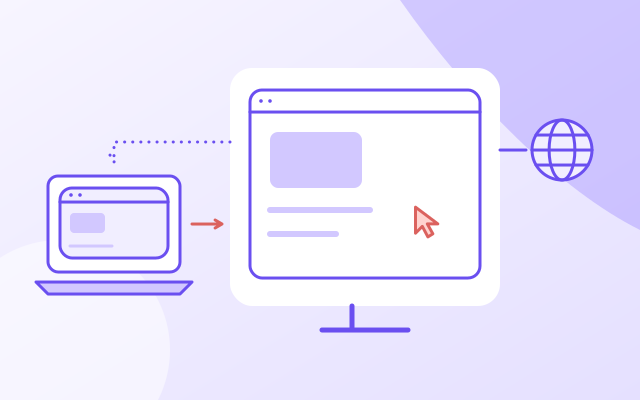
You connect to your work computer, open a website inside the remote desktop, and get a warning. Did the site spot RDP? Or did it see a browser running on a different computer and dislike something about it?
A website can read browser clues and use them to infer remote access. But the ordinary screen and graphics APIs below do not return a remote-desktop session flag. They describe the browser environment. Commercial detection products make stronger claims, and installed monitoring software is a separate case. A blanket “yes” or “no” loses the distinction that matters.
The website reads the browser on the remote computer
Suppose you use a MacBook to control a Windows desktop. If Chrome runs on that Windows desktop, the page executes there. Your MacBook displays the desktop and sends input. The website does not become a Mac website visit because your fingers happen to be on a Mac keyboard.
The same starting point applies to Chrome Remote Desktop, AnyDesk and TeamViewer: first locate the browser running the page. Do not confuse the remote viewer, even one opened in a browser, with the browser inside the desktop you are controlling.
- Your viewer deviceDisplays the remote desktop; sends your input.
- Remote-desktop connectionCarries the desktop and input between devices.
- Browser on the remote hostRuns the page and answers its browser API calls.
- WebsiteReceives page signals and the browser’s web connection.
Can read exposed browser values. These APIs do not provide an RDP session flag or a process list.
An agent, permitted extension or host administrator may have extra access. Check its permissions and policy separately.
This is the ordinary remote-control model, not a promise about every redirection feature. A managed setup can redirect resources or integrate software on both devices. An installed agent or an extension with suitable permissions can also supply information a normal page does not have. If a service asked you to install something, its capabilities need a separate answer.
The web connection matters too. In a straightforward setup, requests leave through the remote browser’s network route. The site sees that connection’s exit address, not automatically the address of the laptop showing the desktop. A hosting-network IP might attract scrutiny without establishing remote control. Our VPN detection guide separates network reputation from browser-side clues.
Try a changed environment without using remote desktop
Start with a control you can reproduce right now. Capture a baseline below, make the browser window narrower, then compare. On a phone, changing orientation may be easier. You have changed what a site can measure without establishing any remote session at all.
Capture a baseline, resize this browser window or change page zoom, then compare. Readings stay in this component’s memory; reloading clears them.
Current readings only. Capture a baseline to start.
| Source API | Baseline | Current | Comparison |
|---|---|---|---|
navigator.userAgent | Not captured | Waiting for browser | Not compared |
screen.width / height | Not captured | Waiting for browser | Not compared |
screen.availWidth / availHeight | Not captured | Waiting for browser | Not compared |
screen.colorDepth / pixelDepth | Not captured | Waiting for browser | Not compared |
window.innerWidth / innerHeight | Not captured | Waiting for browser | Not compared |
window.devicePixelRatio | Not captured | Waiting for browser | Not compared |
UNMASKED_VENDOR_WEBGL | Not captured | Waiting for browser | Not compared |
UNMASKED_RENDERER_WEBGL | Not captured | Waiting for browser | Not compared |
Current WebGL detail access: WebGL details unavailable, or browser has not loaded.
The table reads navigator.userAgent, the screen dimensions, available screen area, color and pixel depth, viewport dimensions, devicePixelRatio, and the optional WebGL debug strings. The API names are printed beside the values. Nothing here enumerates installed programs or queries Windows session state.
The comparator itself makes no network requests and keeps its snapshots only in component memory. Reloading clears the baseline. This is a claim about this figure, not a claim that every other feature on the site is offline. It does not upload a fingerprint, save a result to your account, or call a fraud vendor.
A row marked “Same” means only that the two readable values match. “Changed” means the values differ. If a measurement is unavailable, the figure refuses to treat two missing values as a match. That is less dramatic than a red “RDP detected” badge. It is also what the measurement supports.
A screen size is not a remote-desktop signature
screen.width and screen.height report web-exposed screen dimensions in CSS pixels. window.innerWidth and window.innerHeight describe the page’s viewport. Those are different measurements, and neither is a guaranteed readout of the physical monitor’s pixel count.
Page zoom adds another trap. As the devicePixelRatio documentation explains, ordinary page zoom affects DPR; pinch zoom does not. Moving a window between displays with different pixel densities can change it too. A changed ratio is evidence of a changed reading, not a remote operator.
A remote session may present a different display configuration. So may changing your monitor or desktop scaling. Conversely, a remote setup can preserve values the browser was already reporting. Screen readings alone cannot tell you which explanation is right.
The old color-depth trick is not an RDP test
Some older answers suggest checking whether screen.colorDepth is lower than expected. That assumes the browser exposes the relevant display difference and that remote access is the only explanation for it. Neither assumption makes a reliable general detector.
The current CSSOM View editor’s draft describes these display fields and permits privacy-preserving screen information. For color depth, it recommends returning 24 when the browser does not know the depth or chooses not to expose it for privacy. It also notes compatibility behavior around 24 and 32. This is a working draft, not an RDP specification.
So “24 means local” and “32 means remote” are made-up verdicts attached to real numbers. You can record the numbers. You cannot get session certainty by renaming them.
A software GPU is a clue, not proof
The optional WEBGL_debug_renderer_info extension exposes vendor and renderer strings. The Khronos specification defines them as graphics-driver information and discusses the privacy reasons browsers may withhold that detail. It does not define a remote-access indicator.
A software renderer tells you about the rendering path the browser reports. It does not tell you who is driving the mouse. Do not reverse that mistake either: a named hardware GPU does not rule out a remote session. Microsoft explicitly documents GPU-accelerated rendering in Azure Virtual Desktop over RDP.
Our WebGL fingerprinting explainer covers what those strings reveal and why checker warnings can misfire. The figure reports whether debug strings were returned, the debug extension was unavailable, or a read failed. Otherwise it reports unavailable details, without claiming the context itself is missing. It cannot identify the hidden cause.
What commercial remote-access detection actually claims
Do not turn the absence of a standard flag into “no website can ever detect remote access.” PREBYTES markets remote-desktop detection with JavaScript deployment on the web, active and passive detection layers, and risk reporting through an API. Those are the vendor’s claims. We have not tested its product or independently verified its accuracy.
A commercial verdict is not equivalent to one screen property, and this comparator does not reproduce that product. Nor does it test behavioral models. A sluggish cursor is not proof: lag has other causes. Remote human input is also not the same thing as Selenium driving a browser; our automation detection article addresses that different question.
Compare your own setup before changing it
For an authorized remote desktop you administer, keep this page open on the host. Capture a baseline at its physical console, connect remotely, then compare if the same page session survives. If it reloads, the baseline is gone; record the first readings yourself before repeating. Note which client, browser and display settings you used. We have not run this RDP experiment ourselves, so these steps are a test procedure, not reported results.
Opening this page on your laptop and then on the remote host is a different experiment: you are comparing two browser environments. Differences are expected and do not isolate remote access as the cause. Keep that distinction in your notes.
For legitimate multi-profile QA, a profile manager such as Incogniton may belong in your workflow, but it is not evidence that remote access is undetectable. Follow the service’s remote-access policy rather than treating any fingerprint checker as permission.
If a site blocks your work session, save the actual warning and your before-and-after readings for its support team. Then run the scan from the browser inside that session, not just from the laptop displaying it.