back to overview
 More blogs
You open a news site, a sign-in page or a Discord invite, and Chrome drops a box under the address bar: the site “wants to look for and connect to any device on your local network”. Since Chrome 145 the box comes in two versions: “access other devices on your local network” or “access other apps and services on this device”. Allow or Block. No explanation of why a website you only meant to read would care about your printer.
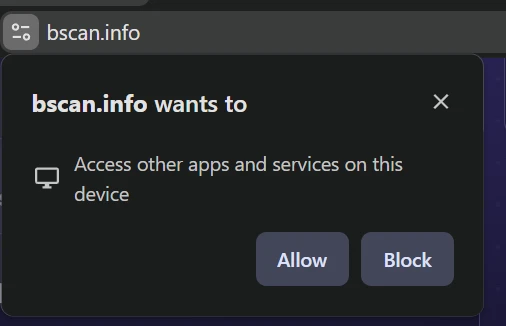
Google calls the feature Local Network Access, and it is new. Before Chrome 142, released in late October 2025, any HTTPS page could quietly send requests to software running on your own computer, and in many cases to devices on your network, and you never saw a thing. Now the browser holds the request and asks you first. Plenty of the sites that trigger it have been doing this for years. The prompt is the first time you get to see it.
The widget on this page is a working example. Press the button and this site tries to reach 89 common ports on 127.0.0.1, the address of your own computer. On a current Chrome you’ll get the real prompt, and you can see what a page learns when you allow it and what it gets when you don’t.
What “your local network” means to Chrome
Chrome sorts every address a page can talk to into three zones. Public addresses are the internet. Local addresses are the private ranges your router hands out: 192.168.x.x, 10.x.x.x, 172.16–31.x.x, link-local 169.254.x.x, their IPv6 cousins and names ending in .local. Loopback is 127.0.0.1, ::1 and localhost, which means “this same machine”.
A public website reaching into the second or third zone is the usual trigger. A public site loading images from another public server never prompts. A request from a public page to 192.168.1.1 or to localhost:6463 does, and it waits until you answer:
https://news.example tries to reach…- Public internetany normal website
- Your local network192.168.x.x · 10.x.x.x · .local
- This computer127.0.0.1 · localhosttarget
Look for and connect to any device on your local network
Access other apps and services on this device
Chrome 145 split the single permission in two. Requests to other devices on your network now ask to “access other devices on your local network”, and the site setting is called Local network. Requests to your own computer ask to “access other apps and services on this device”, listed in site settings as Apps on device. The second one is the prompt you’re more likely to see, because most sites asking aren’t after your printer at all. They want to know what’s running on your laptop.
Who asks: sign-in helpers, Discord, fraud scripts, trackers
A public page reaches into your network for one of two reasons: something you own needs it to, or a script wants an inventory of what you run. The prompt can’t tell you which:
- Company sign-in helperOkta FastPass, Duo Desktop, 1PasswordWants: Proof this is a managed work laptop · reaches this device
 Allow
- Your callDesktop app hand-offDiscord invite links, port 6463Wants: To open the link in the installed app · reaches this device
- Fraud and bot scoringThreatMetrix on eBay, 14 ports (2020)Wants: A list of remote-access tools you run · reaches this device
 Block
- Tracking scriptMeta Pixel, Yandex Metrica on Android (2025)Wants: To link your browsing to a logged-in app · reaches this device Block
- Hardware setup pagerouter, printer, NAS, smart home hubWants: To configure a device you own · reaches your network Allow
Sign-in and device-trust helpers. Okta FastPass, Duo Desktop, 1Password’s device trust and similar tools install an agent that listens on localhost. When you sign in, the web page asks that agent to prove the device is a managed company laptop. Block the prompt and the sign-in fails. Okta’s own help page tells users to click Allow, and that’s right for your employer’s sign-in page.
Desktop app hand-offs. Open a Discord invite in the browser and the page tries to reach the Discord desktop app on port 6463 so it can open the invite there. That hand-off runs over a WebSocket, which Chrome only started gating in version 147. Convenient and mostly harmless, but any page can knock on port 6463, and whoever gets an answer knows you have Discord installed. Firefox has had a bug open since 2023 about the invite page reaching past private browsing this way.
Fraud and bot scoring. In 2020 BleepingComputer caught eBay running a script that probed 14 local ports, most of them remote-access tools like Windows Remote Desktop (3389) and VNC. The script came from ThreatMetrix, a LexisNexis fraud-detection product sold to other retailers and banks as well. The logic: a checkout from a computer with a remote-control tool listening may be a hijacked computer. It’s the same reasoning behind websites trying to spot remote desktop sessions and the automation checks anti-bot systems run. It also explains why a site you’d never expect to care asks for access: the script belongs to a fraud or analytics vendor the site embeds, but the prompt shows the site’s name, not the vendor’s.
Tracking. In June 2025 researchers published “Local Mess”: on Android, Meta’s Pixel script and Yandex Metrica sent data from ordinary websites to the Facebook, Instagram and Yandex apps listening on localhost. That tied anonymous web browsing to a logged-in app identity, straight through Incognito mode and cookie clearing. Meta stopped within hours of publication. The researchers pointed to Google’s then-proposed local network permission as a longer-term fix. This prompt is that permission, though it covers ordinary web requests and WebSockets so far, not WebRTC, the channel Meta had switched to by the time of disclosure.
Devices you own. Router admin pages, printer setup, smart home hubs and NAS dashboards that run in the cloud but configure a box on your network. These are the cases the original wording was written for. If you’re setting up hardware on that site, allow it.
What a site learns if you click Allow
With the permission, a page can send ordinary web requests to the addresses it asked for and read the answers it’s allowed to read. For a port scan, even the timing and the error type are enough to tell an open port from a closed one, so the page walks away with a list of what’s listening on this computer. That list is a fingerprint: developer tools on 3000 and 5173, a database on 5432, a game launcher, a remote-control app. Few people share the same combination. It belongs on the same list as the local IP addresses WebRTC used to leak.
It does not get your files, your MAC address (that never leaves your local network anyway) or control of your devices. A device that answers web requests without a password is a separate problem, and blocking the prompt is the only protection the browser offers it.
Blocking also tells the site something. The script sees its requests fail, and a page can read the permission state directly through the Permissions API. In a fraud model, “declined local access” is one weak signal among hundreds. Blocking isn’t invisible. It’s just cheap.
How to turn off or change the prompt
Clicked the wrong button? Click the tune icon left of the address, open Site settings and set Local network access (Chrome 142 to 144) or Local network and Apps on device (Chrome 145 and later) to Ask, Allow or Block. The defaults for every site live under chrome://settings/content, where you can stop sites from asking at all. On a managed work laptop, IT can pre-allow the company’s sign-in pages by policy, which is why you may never see the prompt there and see it constantly at home.
Microsoft Edge has shown the same prompt since version 143. Firefox has asked since version 151 (May 2026). Safari doesn’t ask at all yet.
On an iPhone, iPad or Mac there’s a second layer: apps ask for Local Network access through the operating system, and Chrome is one of those apps, with its own switch under Privacy & Security. A site needs Chrome’s permission and, for devices on your network, Chrome’s own system permission. If you allowed a site and it still can’t find your printer, check the system switch.
Is it safe to click Allow?
Ask one question: is there something on my network or my computer that this site is supposed to talk to? Signing in to work, opening a Discord link in the app, setting up a printer: yes, and allow it for that site only. Reading, watching or shopping: no. If blocking ever breaks something you need, the switch is one click away in site settings.
If you run many browser profiles side by side, for client accounts or ad verification, there’s a second reason to block: what’s listening on localhost belongs to the machine, not the profile. Every profile that allows the scan hands over the same list of services, which ties them together. Incogniton lets you set this per profile, so the one profile that needs the work sign-in helper gets Allow and the rest stay blocked.
Try it on yourself: run the port check at the top of this page with Allow, run it again after switching to Block, and compare what this site could see.